AdjustNamespace is a Visual Studio 2022 extension which brings the C# namespaces in accordance with the location and rules the resulting regressions in the code (including XAML), e.g. fixes the broken references. This extension works like Resharper Adjust namespaces function. If you know Resharper, you know what this extension is trying to do.
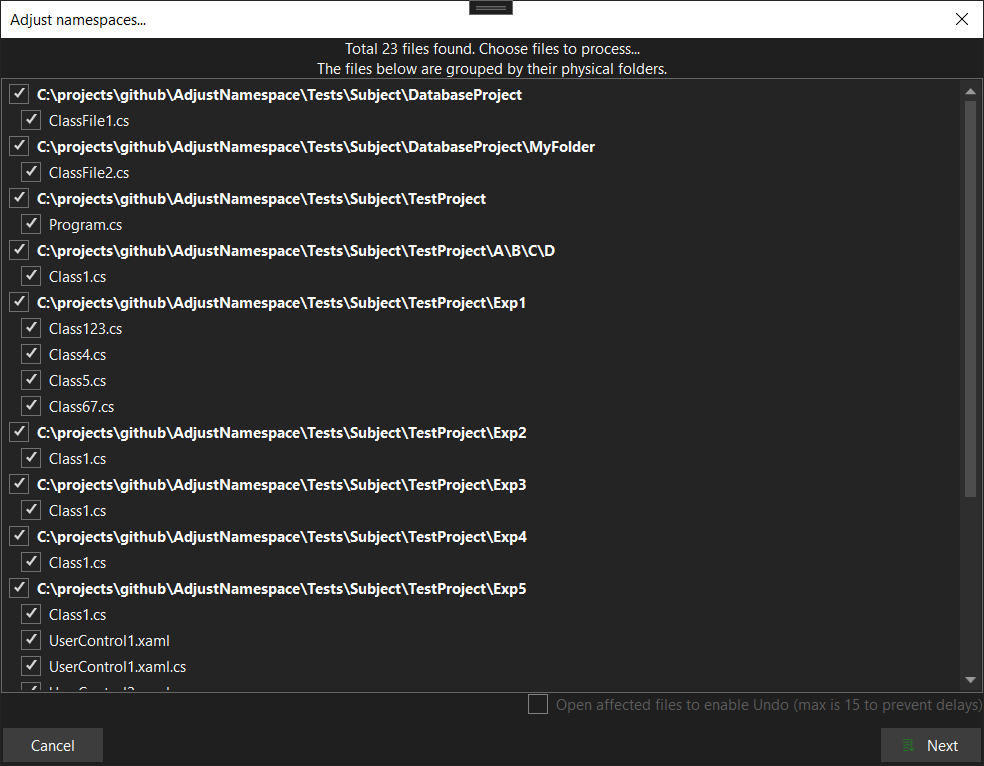
Select object (solution, project, folder or file) in solution explorer, click RMB, choose Adjust Namespaces... and follow the wizard.
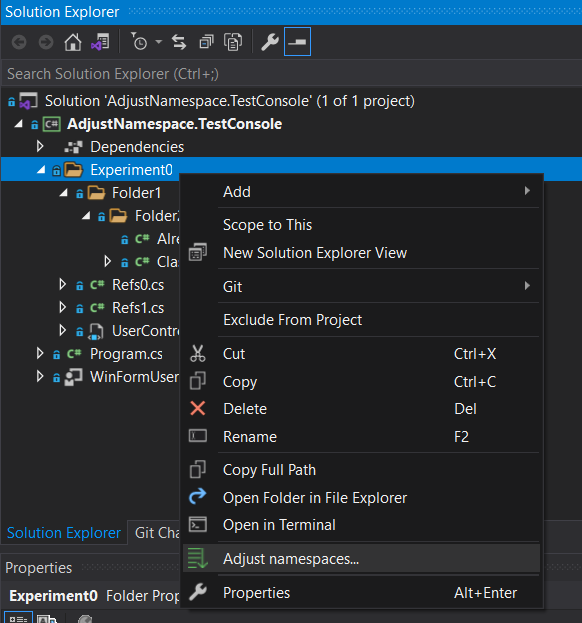
or choose the whole solution by this way:
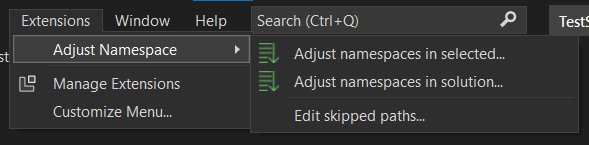
You can also exclude some folders from participating in namespace chain. AdjustNamepace stores such settings in its configuration xml file, in the folder of your solution. Commit that file to share it across your team.
| Command | Where it lives | What it does |
|---|---|---|
Adjust namespaces... |
Solution explorer context menu (solution, project, folder, file) | Adjusts the files of the selected items. |
Adjust namespaces in solution... |
Extensions -> Adjust Namespace |
Adjusts every file of the opened solution. |
Adjust namespaces in selected... |
Extensions -> Adjust Namespace |
Same as the context menu command, but available regardless of the active window. |
Edit skipped paths... |
Extensions -> Adjust Namespace |
Edits the folders which must not take a part in the namespaces. |
Show release notes... |
Extensions -> Adjust Namespace |
Opens RELEASE_NOTES.md of the installed version. |
- Preparation. Every project of the solution is compiled and the found errors are reported. The adjusting is based on the Roslyn semantic model, so a broken solution may lead to incorrect results. You are allowed to move next anyway.
- Selection. The chosen files are scanned and only those which really have to be changed are shown, grouped by their folder. Here you may uncheck the files you do not want to touch, tune the target namespace with a regex (see below) and decide whether the changed files have to be opened in the editor. If the target namespace of a file already contains a type with the same name, the scan stops with an error: such a move would break the compilation.
- Performing. The files are processed one by one, then the using clauses of the namespaces which became empty are removed from the whole solution.
For every file the target namespace is built as
<default namespace of the project> + <folders between the project folder and the file>
and then modified by the optional user regex.
- The default namespace is taken from the project properties (C# and
sqlprojprojects). For the other project kinds (a shared project, for example) the project name without its last part is used:MyApp.Shared->MyApp. - The folders excluded by the user (see
Edit skipped paths...) do not take a part in the resulting name. - The user regex is applied to the whole resulting namespace. The second step of the wizard offers a few built in samples, e.g.
^[^.]+with an empty replacement renames the first part of every target namespace. - Files located outside of their project folder (linked files) are skipped.
The settings are stored in adjust_namespaces_settings.xml, in the folder of your solution. Commit that file to share the settings across your team.
<?xml version="1.0"?>
<AdjustNamespaceSettings xmlns:xsd="http://www.w3.org/2001/XMLSchema" xmlns:xsi="http://www.w3.org/2001/XMLSchema-instance">
  <SkippedFolderSuffixes>
    <!-- a rooted path -->
    <string>C:\projects\MySolution\MyProject\A\B\C\</string>
    <!-- or a path relative to the folder of the solution -->
    <string>MyProject\A\B</string>
  </SkippedFolderSuffixes>
</AdjustNamespaceSettings>
The extension also keeps a few per user options (Tools -> Options -> Adjust Namespaces); they are used for the release notes gold bar and for the rating request only.
C# files:
- the namespace declarations, both the classic (
namespace A { }) and the file scoped (namespace A;) ones; - the references to the moved types across the whole solution: a new
usingclause is added, or the fully qualified name is rewritten in place; - the usages of the extension methods declared in the moved static classes;
- the using clauses which point to the namespaces emptied by the adjusting are removed.
XAML files:
- the
x:Classattribute; - the tags which reference a moved class through an xmlns alias;
- the
{x:Type}and{x:Static}markup extensions; - the
xmlns:...="clr-namespace:..."clauses: a clause for the target namespace is created when required and the clauses which became unused are removed.
By default the files are changed without opening them in the editor, so such changes cannot be undone with Ctrl+Z. Check Open affected files to enable Undo on the second step of the wizard to open the affected files instead. The checkbox is disabled if too many files are chosen, because a lot of documents opened at once makes Visual Studio unresponsive.
I test it against plain C# code, WPF Xaml, and C# code from sqlproj. I encourage you test against your codebase and report bugs (with minimal repro) to https://github.com/lsoft/AdjustNamespace/issues.
A few things which are worth to know:
- make sure your solution is compiled successfully before the adjusting, otherwise the results may be incorrect;
- the
System*andMicrosoft*namespaces are never touched; - the xaml files are processed as a plain text (with a set of regexes) to keep your formatting untouched, so an exotic markup may be missed;
- the whole adjusting is a bunch of separate edits, there is no single
undotransaction for it.
- Visual Studio 2022 (17.0 - 18.0), amd64;
- .NET Framework 4.8 (to build the extension).
- Install Visual Studio 2022 with the
Visual Studio extension developmentworkload. - Open
AdjustNamespace.slnand build it. The dependencies (Community.VisualStudio.Toolkit, Roslyn, VSSDK build tools) are restored from NuGet. - Press F5: an experimental instance of Visual Studio with the extension installed is started.
The solution consists of two projects:
AdjustNamespace.VsixShared— a shared project with the whole code of the extension;AdjustNamespace.2022— the VSIX project for Visual Studio 2022 (the manifest, the command table, the resources).
The code which depends on the Visual Studio version is guarded with the VS2022 conditional compilation symbol.
There is no automated test suite; the extension is tested manually against the sample solution from the Tests folder. See Tests/README.md.
- docs/ARCHITECTURE.md — how the extension is arranged inside.
- RELEASE_NOTES.md — what is new.
Debug builds of the extension write a log into %TEMP%\AdjustNamespace.vs.log. Please attach it (and a minimal repro) to your bug report.